



How To Connect LED TV With Wi-Fi

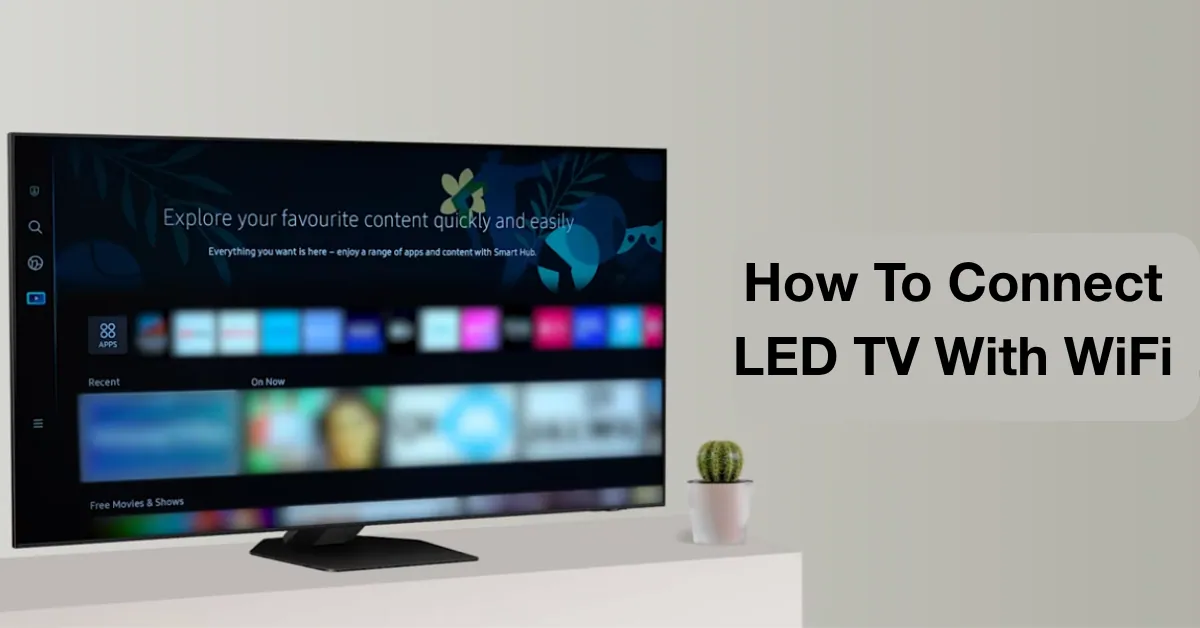
Complete Guide 2026
Introduction
Connecting your LED TV to WiFi unlocks a world of entertainment and smart features. Once connected, you can stream YouTube videos, watch Netflix, browse apps, update your TV software, and enjoy online content without needing additional devices.
Whether you own a TCL, Haier, Samsung, Sony, LG, Dawlance, EcoStar, or any other Smart LED TV, the WiFi setup process is generally simple and takes only a few minutes.
In this guide, you’ll learn how to connect an LED TV to WiFi, troubleshoot connection issues, and improve your internet performance for smooth streaming.
Why Connect Your LED TV to Wi-Fi?
A WiFi connection allows your Smart TV to access online services and smart features.
Benefits of Connecting LED TV to Wi-Fi
- Watch YouTube and Netflix
- Access streaming apps
- Download software updates
- Browse online content
- Stream movies and TV shows
- Use screen mirroring features
- Connect smart home devices
- Access Google TV or Android TV services
What You Need Before Connecting
Before starting, make sure you have:
Requirements
- A Smart LED TV
- Active WiFi connection
- WiFi network name (SSID)
- WiFi password
- TV remote control
How to Connect LED TV with Wi-Fi
Method 1: Connect Smart TV to Wi-Fi Automatically
This method works for most Smart TVs.
Step 1
Turn on your LED TV.
Step 2
Press the Settings button on the remote.
Step 3
Go to:
Network Settings
or
Internet Settings
Step 4
Select:
Wireless Connection (WiFi)
Step 5
Your TV will scan for nearby WiFi networks.
Step 6
Choose your WiFi network name.
Step 7
Enter your WiFi password carefully.
Step 8
Select Connect.
After a few seconds, your TV should display:
Connected Successfully
How to Connect Android TV to Wi-Fi
Many modern LED TVs use Android TV or Google TV.
Steps
Step 1
Open Settings.
Step 2
Select:
Network & Internet
Step 3
Turn WiFi ON.
Step 4
Choose your WiFi network.
Step 5
Enter the password.
Step 6
Press Connect.
Your Android TV is now online.
How to Connect Google TV to Wi-Fi
Google TV models follow a similar process.
Steps
- Open Settings
- Select Network & Internet
- Choose WiFi
- Select your network
- Enter password
- Connect
Once connected, you can access:
- YouTube
- Netflix
- Prime Video
- Disney+
- Google Play Store
How to Connect LED TV to Mobile Hotspot
If home WiFi is unavailable, you can use your smartphone’s internet connection.
Step 1
Enable Mobile Hotspot on your phone.
Step 2
Set a hotspot name and password.
Step 3
Open TV Network Settings.
Step 4
Select your phone’s hotspot.
Step 5
Enter the hotspot password.
Step 6
Connect.
Your TV can now use mobile data for internet access.
How to Check if Your TV is Connected to Wi-Fi
You can verify the connection by:
Method 1
Open YouTube and play a video.
Method 2
Go to:
Settings → Network → Connection Status
You should see:
✅ Connected to Internet
Common Wi-Fi Connection Problems
Sometimes an LED TV may fail to connect to WiFi.
Here are the most common issues and solutions.
Problem: TV Cannot Find Wi-Fi Network
Solutions
- Restart the router
- Restart the TV
- Move the router closer
- Check if WiFi is enabled
Problem: Incorrect Password Error
Solutions
- Re-enter password carefully
- Check uppercase and lowercase letters
- Verify router password
Problem: Connected but No Internet
Solutions
- Restart router
- Check internet service
- Test WiFi on another device
- Forget network and reconnect
Problem: Slow Streaming or Buffering
Solutions
- Move TV closer to router
- Upgrade internet speed
- Reduce connected devices
- Use 5GHz WiFi if supported
How to Improve Wi-Fi Signal on LED TV
For smooth streaming and 4K viewing:
Tips
Place Router Correctly
Keep the router in an open area.
Reduce Obstacles
Walls and furniture can weaken signals.
Use a WiFi Extender
Helpful for large homes.
Upgrade Router
Modern dual-band routers provide better coverage.
Use Ethernet Cable
For maximum speed and stability.
Wi-Fi vs Ethernet: Which is Better?
Wi-Fi Connection
Advantages
- No cables
- Easy setup
- Flexible placement
Disadvantages
- Signal interference
- Possible buffering
Ethernet Connection
Advantages
- Faster speed
- More stable connection
- Better for gaming and 4K streaming
Disadvantages
- Requires cable installation
For the best performance, Ethernet is ideal, while WiFi offers greater convenience.
Smart Features Available After Connecting to Wi-Fi
Once your LED TV is connected to WiFi, you can enjoy:
Streaming Apps
- Netflix
- YouTube
- Prime Video
- Disney+
- Shahid
- Spotify
Screen Mirroring
Mirror your smartphone directly to the TV.
Voice Control
Use Google Assistant or built-in voice features.
Software Updates
Keep your TV secure and up-to-date.
App Downloads
Install additional applications from the app store.
How to Disconnect Wi-Fi from LED TV
If you need to switch networks:
Steps
- Open Settings
- Select Network
- Choose Connected Network
- Select Forget Network
- Confirm
You can then connect to a different WiFi network.
Frequently Asked Questions (FAQs)
How do I connect my LED TV to Wi-Fi?
Open Network Settings on your TV, select your WiFi network, enter the password, and press Connect.
Why won’t my TV connect to Wi-Fi?
Common reasons include incorrect passwords, weak signals, router issues, or outdated software.
Can I connect my TV to a mobile hotspot?
Yes, most Smart TVs can connect to a smartphone hotspot just like a regular WiFi network.
Does every LED TV support Wi-Fi?
No. Only Smart TVs with built-in WiFi or network capabilities can connect directly to the internet.
Is Wi-Fi or Ethernet better for Smart TVs?
Ethernet offers faster and more stable performance, while WiFi provides convenience and wireless connectivity.
Can I watch YouTube after connecting my TV to Wi-Fi?
Yes. Once connected, you can access YouTube and other streaming apps directly on your TV.
How do I improve Wi-Fi speed on my TV?
Move the router closer, use a WiFi extender, reduce interference, or connect using an Ethernet cable.
Final Thoughts
Connecting an LED TV to WiFi is one of the first steps toward enjoying a complete smart entertainment experience. Whether you use a home router or mobile hotspot, the setup process is quick and simple.
Once connected, you’ll be able to stream movies, watch YouTube, download apps, update software, and access countless online services directly from your television.